
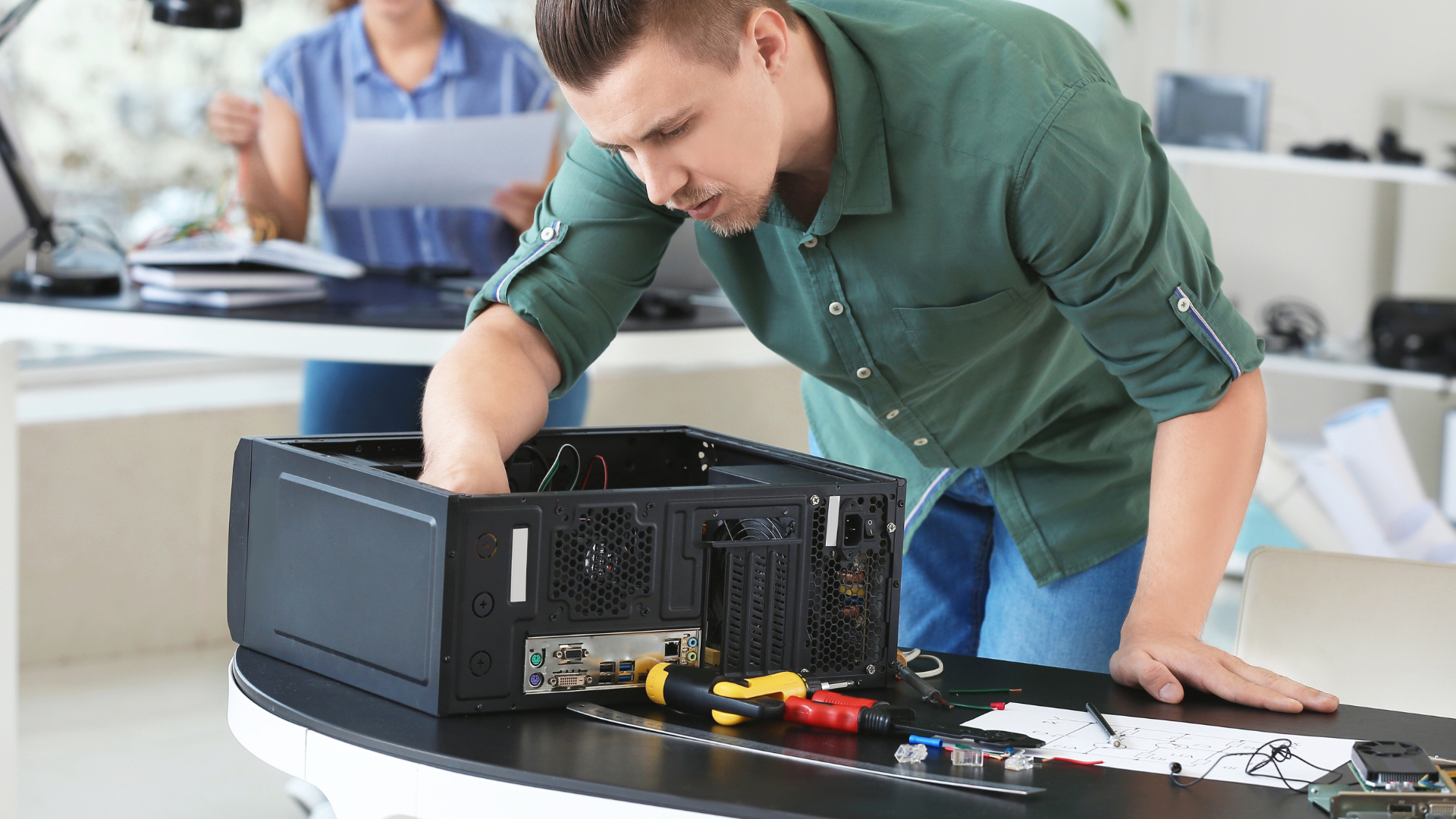
Computer maintenance is essential to keep your device running smoothly and extend its lifespan. Regularly cleaning hardware, updating software, and managing files can prevent common issues and improve performance. Understanding basic maintenance tasks helps avoid costly repairs and data loss.
Many people overlook simple routines like removing dust, running antivirus scans, and backing up important data. These habits are key to maintaining system stability and security. This guide will walk you through practical steps to care for your computer effectively.
Understanding Computer Maintenance
Proper upkeep involves a mix of software updates, hardware checks, and routine cleaning to keep a computer running smoothly. Neglecting these tasks can lead to slowdowns, data loss, or hardware failures.
What is Computer Maintenance
Computer maintenance involves actions taken to preserve and improve the performance of a computer system. It includes updating the operating system and software, running security scans, removing unnecessary files, and cleaning internal hardware components.
Maintenance tasks are split into software maintenance and hardware maintenance. Software maintenance ensures applications and system files are current and virus-free. Hardware maintenance focuses on physical cleaning and checking components like fans, drives, and cables for wear or damage.
Regular maintenance prevents unexpected failures, improves speed, and extends the device’s lifespan.
Benefits of Regular Maintenance
Performing regular maintenance enhances computer speed by clearing temporary files and optimizing startup processes. It also reduces the likelihood of malware infections by keeping antivirus software up to date.
Maintaining hardware through cleaning dust from vents and fans prevents overheating. Overheating can cause sudden shutdowns or permanent hardware damage.
Regular backups and system checks protect against data loss. This reduces downtime and repair costs. Users experience a more reliable and responsive system when maintenance is done consistently.
Common Computer Problems
Slow performance, frequent crashes, and unexpected restarts are typical issues linked to poor maintenance. These symptoms often result from fragmented hard drives, malware infections, or outdated drivers.
Other common problems include overheating due to dust buildup inside the case, which impairs cooling. Hardware failures like worn-out hard drives or bad memory modules can cause system instability or data corruption.
Network connectivity issues and software errors often trace back to outdated software or corrupted files. Identifying these problems early through routine checks helps prevent major failures.
Essential Tools for Beginners
Maintaining a computer requires a few key tools that cover software management, physical hardware adjustments, and protection against threats. Each plays a specific role in keeping your system running smoothly, efficiently, and securely.
Software Tools
Software tools help diagnose, clean, and optimize your computer’s performance. Utilities like disk cleanup and defragmentation improve speed by removing unnecessary files and organizing data.
Popular options include:
- CCleaner for junk file removal
- Malwarebytes for malware scanning
- Speccy to monitor hardware health
Operating system utilities such as Windows Disk Management and Task Manager allow users to identify resource-heavy applications and manage storage efficiently.
These tools simplify routine maintenance and reduce the risk of slowdowns or crashes.
Hardware Tools
Basic hardware tools assist with tasks like cleaning, upgrading, and troubleshooting physical components. Essential items include:
- A Phillips screwdriver for opening the case
- Compressed air cans to clear dust from fans and vents
- Anti-static wrist straps to prevent electrical damage during handling
A clean environment reduces overheating and hardware wear, improving longevity. Knowing how to safely open your machine and replace parts like RAM or hard drives increases your ability to fix common issues.
Anti-Virus Programs
Protecting your computer against viruses and malware is critical. Reliable anti-virus programs detect, quarantine, and remove malicious software before it can cause harm.
Recommended choices:
| Program | Key Features | Cost |
| Windows Defender | Built-in, real-time protection | Free |
| Bitdefender | Strong malware detection | Paid/Free |
| Avast | User-friendly, web protection | Free/Paid |
Regularly updating the anti-virus software ensures it recognizes the latest threats. Running scheduled scans is a good habit to maintain system integrity and personal data safety.
Basic Hardware Maintenance
Maintaining your computer hardware regularly extends its lifespan and ensures smooth operation. Key areas to focus on include physical cleaning, verifying cable integrity, and inspecting internal components.
Cleaning Your Computer
Dust buildup is the most common cause of overheating and hardware failure. Use compressed air to blow dust from vents, fans, and heatsinks. Avoid vacuum cleaners, which can cause static damage.
Clean the exterior with a microfiber cloth lightly dampened with isopropyl alcohol. For keyboards, use a small brush or compressed air to remove debris between keys. Regular cleaning every 3-6 months can prevent dust from compromising system cooling.
Be careful not to spray air or liquids directly into sensitive parts. Always power off and unplug your machine before cleaning.
Checking Cables and Connections
Loose or damaged cables can cause intermittent failures or hardware not being detected. Inspect power cables, data cables (SATA/USB), and monitor connections for fraying, kinks, or bent pins.
Ensure connectors are fully seated in their ports without forcing them. Replace any cables showing visible damage or excess wear. Label cables to keep internal and external wiring organized and reduce the risk of accidental disconnection.
Checking connections after moving or upgrading hardware is critical for system stability.
Managing Internal Components
Regularly verify that internal components like RAM, graphics cards, and expansion cards remain firmly seated in their slots. Over time, vibration or movement can loosen these connections.
Check for signs of corrosion, damaged capacitors, or swollen batteries on the motherboard. Replace thermal paste on the CPU every 1-2 years to maintain effective heat transfer.
Keep internal drives secured in their bays to prevent data loss from sudden shocks. Use anti-static wrist straps when handling components to avoid electrostatic discharge damage.
Operating System and Software Care
Keeping your system running smoothly involves regular attention to software updates, managing what starts with your computer, and removing programs you no longer need. Each step helps maintain performance, security, and overall user experience.
Updating Software and Drivers
Software and driver updates fix bugs, patch security vulnerabilities, and improve system stability. It’s important to check for updates regularly, especially for your operating system and essential drivers like graphics, network, and chipset.
For Windows, use Settings > Update & Security > Windows Update to find updates. On macOS, go to the System Preferences > Software Update. For drivers, manufacturers’ websites or device management tools provide the latest versions.
Enable automatic updates where possible, but review major updates before installing. Avoid outdated or unofficial sources to prevent malware risks.
Managing Startup Programs
Startup programs run automatically when you boot your computer, affecting startup speed and system resources. Too many can slow down your system and drain memory unnecessarily.
On Windows, open Task Manager (Ctrl + Shift + Esc) and select the Startup tab to disable unwanted apps. On macOS, go to System Preferences > Users & Groups > Login Items.
Keep only essential software enabled, like antivirus or system utilities. Disable applications like game launchers or messaging apps unless needed at startup.
Uninstalling Unused Applications
Unused applications take up disk space and can cause background activity, slowing your computer down. Regularly uninstall software you no longer use to free storage and improve performance.
On Windows, navigate to Settings > Apps > Apps & Features, then select and uninstall programs. macOS users drag applications from the Applications folder to the Trash, then empty it.
Focus on removing large programs or those not required. Avoid uninstalling system-critical software or drivers unless you are certain they are unnecessary.
Data Management and Backup
Effective data management involves keeping files orderly, ensuring important information is backed up regularly, and using reliable storage options. These practices protect your data from loss and make retrieval faster and easier when needed.
Organizing Files and Folders
Start by creating a clear folder structure with meaningful names. For example, separate documents by type, such as “Work,” “Personal,” and “Photos.” Avoid storing everything on the desktop or in a single folder, as this complicates finding files.
Use consistent naming conventions like YYYY-MM-DD_ProjectName_Version to keep track of file versions and dates. Regularly delete unnecessary files and archive old data to save space. Tools like file explorers or software with tagging features can further improve organization.
Regular Data Backups
Backing up data protects against hardware failure, accidental deletion, or malware. Set a schedule based on how often you update important files—weekly backup is a good baseline for most users.
Use external hard drives, USB drives, or automated backup software. Verify backups by occasionally restoring files to ensure they are working correctly. Document your backup plan to avoid missing critical data.
Cloud Storage Solutions
Cloud storage offers off-site backup and easy access across devices. Popular services like Google Drive, Dropbox, and OneDrive provide free storage tiers and paid plans for more space.
Look for features such as automatic syncing, version history, and encryption. Cloud storage safeguards files even if your physical devices are damaged or stolen. Always use strong passwords and enable two-factor authentication for added security.
Internet Safety and Security
Protecting your online presence requires concrete steps like creating strong passwords, practicing cautious web habits, and identifying common online threats. These key areas help secure personal data and reduce vulnerability to cyberattacks.
Setting Strong Passwords
Strong passwords are the first line of defense. Use a combination of uppercase and lowercase letters, numbers, and symbols to increase complexity. Avoid common words, names, or predictable sequences like “12345.”
Change passwords regularly and never reuse the same password across multiple accounts. Consider a password manager to store and generate secure passwords without needing to memorize them.
Enable two-factor authentication (2FA) wherever possible. It adds an extra verification step, making unauthorized access harder even if a password is compromised.
Safe Browsing Practices
Always check that websites use HTTPS before entering sensitive information; this encrypts data during transmission. Avoid clicking on unknown links, especially in emails or social media messages.
Keep your browser and plugins up to date to plug security vulnerabilities. Clear cache and cookies occasionally to remove stored data that could be exploited.
Use trusted security extensions or antivirus software to block malware or phishing attempts. Be cautious when sharing personal information on public Wi-Fi networks.
Recognizing Phishing and Scams
Phishing attempts often involve fake emails or messages pretending to be from legitimate sources. Look for poor grammar, urgent requests for personal data, or unfamiliar sender addresses.
Never click on links or download attachments from suspicious messages. Verify the request by contacting the organization directly through official channels.
Common scams include fake offers, lottery wins, or tech support calls. Stay skeptical of unsolicited communications asking for money or sensitive data.
| Signs of a Phishing Attempt | What to Do |
| Unexpected urgent messages | Verify the sender independently |
| Requests for passwords or money | Do not share personal info |
| Suspicious links or attachments | Avoid clicking, report if needed |
Performance Optimization
Improving a computer’s performance involves managing storage space, organizing data efficiently, and keeping track of how system resources are used. These steps help maintain speed and stability over time.
Disk Cleanup Strategies
Disk cleanup removes unnecessary files, freeing up valuable storage space. This includes temporary files, system cache, and outdated backups. Most operating systems have built-in tools like Disk Cleanup on Windows or Storage Management on macOS.
Manually deleting large unused files or uninstalling software no longer needed also improves performance. Scheduling regular cleanup sessions helps prevent slowdowns caused by disk clutter.
It’s important to check the Recycle Bin or Trash before deleting files permanently to avoid accidental data loss. Use third-party cleanup utilities cautiously, ensuring they come from trusted sources.
Defragmenting Hard Drives
Defragmentation reorganizes scattered files on a hard drive to improve read/write efficiency. This process is essential for traditional HDDs but not for SSDs, as SSDs do not benefit from defragmentation.
Fragmented files slow down system performance because the drive’s read/write head must move to multiple locations. Defragmentation consolidates these fragments into contiguous blocks.
Windows includes a Disk Defragmenter tool that can be scheduled for regular use. It’s best to run defragmentation during periods of low computer usage to avoid performance drops.
Monitoring Resource Usage
Tracking system resource usage helps identify bottlenecks affecting performance. Use built-in tools like Task Manager on Windows or Activity Monitor on macOS to view CPU, memory, disk, and network consumption.
Look for processes consuming excessive resources, as these can slow down other tasks. Ending unnecessary programs or upgrading hardware may be needed based on findings.
Some software offers detailed logs and alerts for resource spikes, which aid long-term maintenance planning. Consistent monitoring helps address issues before they significantly impact performance.
Troubleshooting Common Issues
Identifying the root causes of computer problems often begins with checking hardware connections, assessing software health, and reviewing system settings. Understanding these key areas helps quickly resolve many frequent issues.
Slow Performance
Slow performance usually results from overcrowded storage, excessive background programs, or outdated hardware. Start by clearing unnecessary files and uninstalling unused applications to free disk space. Running a disk cleanup tool can also delete temporary files that slow the system down.
Check Task Manager for programs consuming excessive CPU or memory. Disabling unnecessary startup items reduces boot time and improves responsiveness.
Regularly update your operating system and drivers to fix bugs and enhance performance. If the system remains slow, consider upgrading RAM or switching to a solid-state drive (SSD).
Startup Problems
Startup problems often stem from software conflicts, corrupted files, or hardware failures. If the computer freezes or shows error messages, boot into Safe Mode. This limits the startup to essential drivers and helps isolate the cause.
Use system tools like Startup Repair or System Restore to fix corrupted files. Scan for malware, which can block startup processes.
Check BIOS settings for boot order issues or hardware detection errors. Faulty hardware, such as failing hard drives, can also cause startup failures. Run diagnostics to confirm hardware status.
Peripheral Device Issues
Peripheral problems typically involve connection errors, driver issues, or device incompatibility. Verify that cables are securely plugged in and powered on.
Use Device Manager to check if the computer recognizes the peripheral. If marked with a warning symbol, update or reinstall the device driver.
Some devices require specific drivers from the manufacturer’s website for proper function. Compatibility problems can occur after operating system updates; check for driver updates regularly.
For USB devices, try different ports or test on another computer to rule out port or device failure.
When to Seek Professional Help
Knowing when a problem requires professional attention can save time and prevent further damage. Identifying clear signs of serious issues and selecting the right technician are essential steps in effective computer maintenance.
Signs of Serious Problems
Certain symptoms indicate issues beyond basic troubleshooting. Frequent system crashes, unusual noises from hardware, or failure to power on suggest hardware defects. Overheating despite cleaning or improper cooling points to deeper problems.
Data loss, persistent errors during startup, or repeated blue screens warrant immediate expert evaluation. If malware or viruses resist removal by standard software, professional tools and knowledge are necessary.
Attempting repairs without experience when these signs appear risks worsening damage and losing important data. Prioritize professional help for problems involving hardware, data integrity, or persistent system instability.
Choosing a Qualified Technician
Selecting a trustworthy technician ensures proper diagnosis and repair. Look for certifications such as CompTIA A+ or vendor-specific credentials. Experience with your type of device or operating system is important.
Check reviews or get recommendations to gauge reliability and professionalism. Avoid services that promise quick fixes without clear explanations or transparent pricing.
A good technician explains issues clearly, provides written estimates, and offers a warranty on repairs. Effective communication and respect for your data security should guide your choice.
Maintaining Laptops vs Desktops
Laptops require care focused on portability and battery health, while desktops emphasize hardware cleaning and airflow. Power management is critical for laptops, but desktops benefit more from regular internal dust removal and component upgrades.
Unique Laptop Care Tips
Laptops need regular battery calibration and should avoid full discharges to maintain battery lifespan. Keep vents clear and avoid using laptops on soft surfaces like beds to prevent overheating.
Screen cleaning is important; use a microfiber cloth and avoid harsh chemicals. Since laptops have integrated components, internal repairs can be complex, so preventive care is key.
Use a cooling pad during extended use to improve ventilation. Keep the keyboard and trackpad clean to ensure responsiveness and prevent debris buildup.
Desktop Maintenance Differences
Desktops allow easier access to internal parts for cleaning and upgrades. Dust tends to accumulate inside cases, blocking fans and heat sinks, so use compressed air monthly to clean interiors.
Airflow management is crucial; ensure cables are organized to avoid restricting fans. Desktops usually have separate power supplies, so monitor PSU health and replace if noisy or failing.
Regularly check for software updates and drivers. Unlike laptops, desktop components can often be swapped or upgraded individually, which helps maintain performance over time.
Building a Maintenance Schedule
Creating a consistent routine helps keep your computer running smoothly and prevents issues before they become serious. Regular checks and updates are essential for maintaining performance and security.
Weekly Maintenance Tasks
Start by scanning for malware and viruses using your antivirus software each week. This protects your system from threats that can slow down or damage your PC.
Delete temporary files and clear your browser cache to free up storage space and improve browsing speed. Use built-in tools like Disk Cleanup on Windows or third-party apps for efficiency.
Review installed programs and uninstall those you no longer use. This reduces clutter and potential conflicts that can affect system stability.
Monthly Maintenance Tasks
Update your operating system and all installed software monthly. These updates patch security vulnerabilities and improve compatibility.
Check your disk health by running tools such as CHKDSK on Windows or Disk Utility on macOS. Identifying early signs of hard drive failure can prevent data loss.
Back up important files to an external drive or cloud storage monthly. This practice safeguards data against accidental deletion, hardware failure, or malware attacks.